Getting Started
Thank you for choosing the Euvis Arbitrary Waveform Generator. To use all the functions of the
AWG, you must install the software and drivers prior to connecting the AWG to your
computer.
Software and Drivers
Before connecting the AWG module to your computer, you first must have installed the requisite software on your computer running Windows XP:
- both Microsoft .NET Framework 4.0 and Microsoft .NET Framework 4.0 SDK, and
- the Euvis AWG application and related drivers
Please follow the step-by-step instructions to install the software and drivers before connecting your computer to the AWG. The drivers are specialized to work with the AWG, so they must be installed correctly before connecting the AWG and the computer.
Hardware Connections
Connect the AWG module to a clock source through the CKIP SMA connector and to the included AC adapter through the +12V power jack. Connect a USB cable from the AWG to the computer. Connect your oscilloscope and/or spectrum analyzer to the OUTP and OUTN SMA connectors. The analog outputs are 50-ohm back terminated, so you can connect one or both, in either order. Also set up a small fan to blow air across the AWG module at a rate of 20 cubic feet per minute. Please refer to the Hardware Setup section for additional hardware setup information.
Your clock and power connections should be set up according to instructions detailing the
power supply and clock source requirements.
Set the clock source frequency and power to
AWG 272: 2 GHz, +6 dBm
AWG 452: 4 GHz, +9 dBm
AWG 472: 4 GHz, +14 dBm
AWG 801: 4 GHz, +12 dBm.
AWG 872: 4 GHz, +15 dBm.
If your module includes
an optional on-board clock module, then you do not need to connect an external clock
source. Please refer to your product data sheet for
detailed clock power information.
Power-Up
After powering up the AWG, please wait until the AWG has finished its intialization sequence before starting the GUI (approx. 10 seconds). If you open the GUI before you see the output, you will not be able to control the AWG. There are two ways to determine when the intialization sequence has been completed.
If you already have your AWG connected to an oscilloscope/spectrum analyzer, the power-up waveform should become visible on your oscilloscope/spectrum analyzer after the initialization sequence has finished. Alternatively, you can check to make sure a Euvis AWG device appears under the Universal Serial Bus Controllers section of the Windows Device Manager.
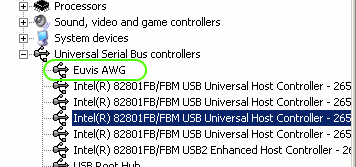
After checking that the initialization sequence has completed using either of the methods described above, launch the AWG_WIN application by double clicking the icon on the desktop. This program will allow you to download waveforms to the AWG module and will facilitate the configuration of waveform parameters and operation settings. When you open the program, the powerup waveform will stop.

Changing the Clock Frequency (Signature File)
After opening the GUI application, the clock frequency setting will need to be changed. When operating the AWG at different clock frequencies, the settings may need to be changed for optimal performance, especially at higher clock speeds. These settings can be saved in a signature file. A preset signature file has been included in the main AWG directory. The signature file contains preset hardware settings for frequencies from 500 MHz to 2 GHz for the AWG272 or 2 GHz to 4 GHz for the AWG452/472/801/872.
To change the clock frequency in the GUI, click on the Signature tab and slide the Clock Frequency trackbar to match the frequency of your input clock source.

More details on the signature can be found in the signature section.
Waveforms
All Euvis AWG's come with several built-in waveforms including: absolute sine wave, relative sine wave, ramp, frequency chirping, and N-tones. To access these waveforms, click on the Waveform tab. Use the pull down menu to select the waveform named "1/32 Sine (sine_1o32.wfa)". This is a default Sine wave at 1/32th of the clock frequency. The paramters of the waveform are modifiable by editing the respective text boxes and hitting return to enter the new parameter.
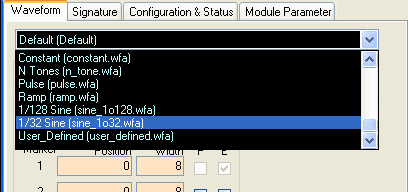
In order for the AWG output to reflect the current waveform paramters, the new waveform must be downloaded to the AWG. Click the Download button (at the lower right corner of the waveform panel, or press F8). The computer then downloads the parameterized data to the AWG memory so that the firmware generates the actual waveforms. You must press the Download button each time you change the waveform parameters.
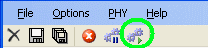
Press the Restart button (in the menu bar, or press F1) as needed to restart the waveform.
For a brief description of other waveforms available in the GUI application, please see the Waveforms page.
Abort and Restart
Clicking on the "Abort" button will stop output from the AWG.
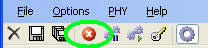
Clicking on the "Restart" button will cause the AWG to start output. After downloading data to the AWG, click the Restart button.