Multiple Waveforms with Dynamic User Paging
This module features memory address paging. In it, you can choose which one of up to 15 possible user pages to use, and you can quickly switch between various waveforms stored on those user pages.
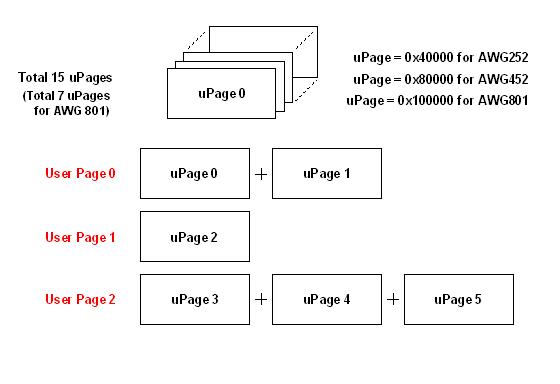
A waveform is stored in a User Page. Each user page consists of several memory partitions called uPages. The API automatically manages the uPages according to the data length of waveforms. Therefore, the uPages are virtually invisible to you. To download a waveform to the module, you need to select a user page, optionally modifying the waveform parameters if built-in waveforms are used, and download the waveform data. After downloading the waveform data from the GUI, the user page information is automatically updated under the waveform tab. In the API, the user page information, such as how many user pages are used and how many upages remain, can be derived via API properties.
The total memory in the module is divided into several equal-length page-wise segments.
These segments are called uPages. This partitioning enhances the efficiency of memory
usage and makes it possible to swap waveforms on the fly without any interruption
or latency. The modules have
15 uPages with lengths of 0x40000 for the AWG 272,
15 uPages with lengths of 0x80000 for the AWG 452/872,
7 uPages with lengths of 0x100000 for the AWG 801/872.
If a waveform is shorter than the length of the memory partition, the remainder of that uPage memory partition is simply unused. If a waveform requires more than one such memory partition, then the total number of available user pages will be reduced.
To choose the user page
Go to the Waveform panel. In the lower right area of that panel, you'll see the User Page section, which has a slider where you can choose the different user pages.
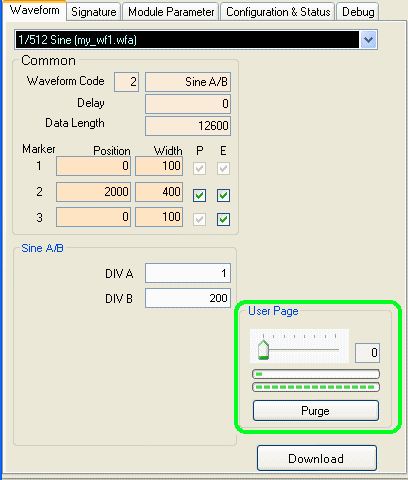
Each user page can load a separate waveform, but the more user pages you have, the fewer memory addresses you have available for each waveform -- meaning the maximum data length of each waveform is shorter.
Dynamic Paging
Once you have downloaded waveforms onto the user pages, the waveforms can be selected and generated dynamically without restarting the module. The newly selected waveform will follow the previous one without latency. The user page selection can happen any time. As long as the user page is selected (altered) before the current waveform ends, the newly selected waveform will be generated right after the end of the current waveform. Otherwise, the subsequent waveform remains the same as specified in the current user page.
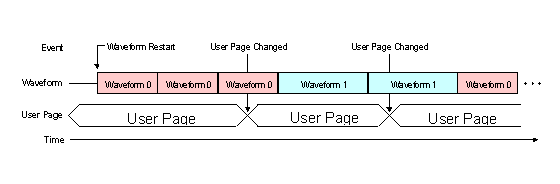
The above figure shows an example of how the waveforms change dynamically according to the user page selections, which can be made via the GUI or the API. Two different waveforms, waveform 0 and waveform 1, are stored in the user page 0 and 1, respectively, using download operations. The AWG waveform generation mode in the example is free run continuous mode. The user page 0 is selected at the beginning. Once the AWG restarts, waveform 0 is generated repeatedly. In the third waveform generation, the user page is changed to user page 1 by the user. Waveform 0 will continue to its end, and the following waveform generated is waveform 1 according to the new user page selection. In the fifth waveform, the user page is changed again back to user page 0. The sixth waveform will be waveform 0 accordingly. Dynamic paging gives the ability to generate compound waveforms as combinations of basic waveforms.
Example
For this example, we will limit each waveform data length to one uPage length to take advantage of all fifteen user pages so that we can have 15 different waveforms.
» Slide the slider to go to User Page 0.
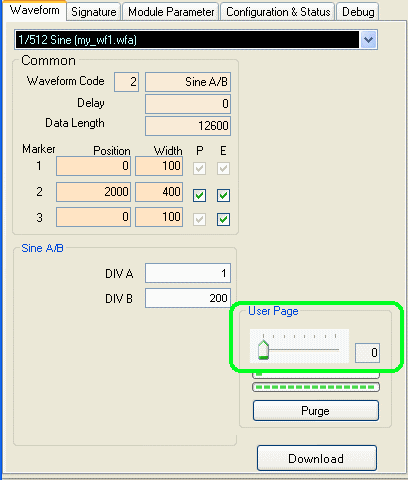
» Either load a pre-stored waveform or create a waveform by adjusting the waveform parameters of an existing waveform. For this example we will load a previously saved waveform.
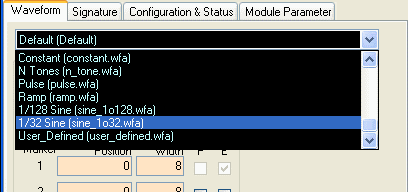
» Click on the Download Waveform button. After the waveform file finishes downloading to the module, press the Restart button (right-click the mouse, and then choose Restart) and you should see the waveform in your oscilloscope or spectrum analyzer if you them connected to the module outputs.
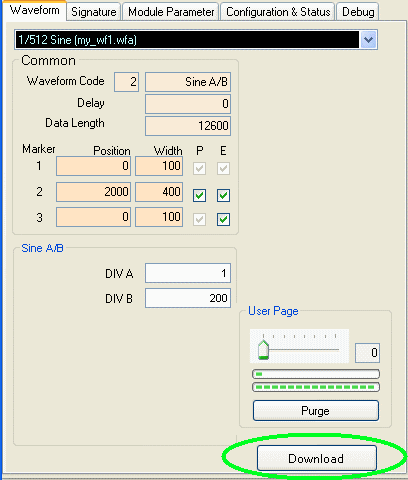
» Now slide the slider bar to the next tick. The corresponding page number increments by 1. Repeat the above two steps, downloading different waveforms for each page. After you have done this, you will have up to 15 different waveforms on the module. You can easily switch between waveforms by using the slider. Once you move the slider, the output waveforms will change immediately.
The GUI is just a demonstration of the paging option. To take advantage of its full potential, a user-end application can be written using our API (avaiable with the software release) to generate complex waveforms from multiple user pages with a minimum switching time of 10 microseconds.