Getting Started -
Thank you for choosing the Euvis Arbitrary Waveform Generator. To use all the functions of the
AWG, you must install the software and drivers prior to connecting the AWG to your
computer.
Software and Drivers
Before connecting the AWG module to your computer, you first must have installed the requisite software on your computer running Windows XP:
- both Microsoft .NET Framework 2.0 and Microsoft .NET Framework 2.0 SDK, and
- the Euvis AWG application and related drivers
Please follow the step-by-step instructions to install the software and drivers before connecting your computer to the AWG. The drivers are specialized to work with the AWG, so they must be installed correctly before connecting the AWG and the computer.
Hardware Connections
Next, connect the AWG module to a clock source through the CKIP SMA connector and to the power supply through the pluggable header. Connect a USB cable from the AWG to the computer. Also set up a small fan to blow air across the AWG module.
Your clock and power connections should be set up according to instructions detailing the power supply and clock source requirements. Set the clock source frequency to 2 GHz with 3dBm power. If your module includes an optional on-board clock module, then you do not need to connect an external clock source.
Power-Up
Before opening the graphical user interface (GUI) when you first power up, you must wait until you see the demo waveform output. If you open the GUI before you see the output, you will not be able to control the AWG. The demo waveform is burned into the ROM on the module so you will not be able to change it by yourself. If you would like another demo waveform when you first turn on the AWG, you can contact us to request the change.
Now that the demo waveform is running, this is a good time to check that the 1.8V voltage has not dropped too low due to resistance along the power wires between the module and your power source. The current varies with clock frequency, and therefore the voltage drop along your wires will increase at higher clock frequencies. At a clock rate of 2 GHz, the voltage measured at the power plug screw corresponding to 1.8V should be around 1.75V; if yours measures too low, please increase your 1.8V power source voltage slightly to compensate for the resistance of your wires. If your AWG module included an on-board power module, then you do not have to check the voltage.
Launch the AWG_WIN application by double clicking the icon on the desktop. This program will allow you to download waveforms to the AWG module and will facilitate the configuration of waveform parameters and operation settings. When you open the program, the startup demo waveform will stop.

Changing the Clock Frequency (Signature File)
The first thing that you should do after you open the GUI application is to set the clock frequency. When operating the AWG at different clock frequencies, the settings may need to be changed for optimal performance, especially at higher clock speeds, when the timing and thresholds of data samples are less forgiving and need to be adjusted for different clock frequencies. These settings can be saved in the signature file. We have already provided you with a signature file in the main AWG directory. The signature file contains preset signatures for frequencies from 500 MHz to 2.5 GHz, and up to 4 GHz for the AWG452. Therefore, you most likely will not need to adjust much when you change frequencies. The only thing you might need to do is to click on the "ATE" checkbox to fine-tune the AWG.
To change the clock frequency in the GUI, click on the Signature tab and slide the frequency bar to match the frequency of your input clock.
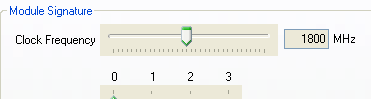
More details on the signature can be found on the signature page.
Waveforms
The AWG comes with four built-in waveforms: absolute sine wave, relative sine wave, ramp, and N-tones. To access these waveforms, click on the Waveform tab. In the Waveform panel, use the pull down menu to select the waveform named "1/128 Sine (sine_1o128.wfa)". This is a Sine wave at 1/128ths of the clock frequency. Optionally, you may adjust the parameters for this waveform. The computer calculates the newly parameterized data, although data on the AWG does not yet change.
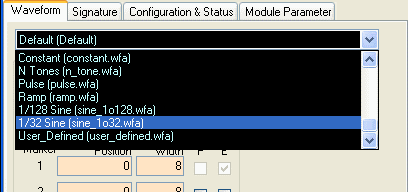
Press the Download button (at the lower right corner of the waveform panel). The computer then downloads the parameterized data to the AWG memory so that the firmware generates the actual waveforms. You must press the Download button each time you finish changing the parameters, unless you have enabled Auto-Download in the Options menu.
Press the Restart button (in the right-click pop-up menu) as needed to restart the waveform.
For a brief description of other waveforms available in the graphical user interface, please see the Waveforms page.
Abort and Restart
Clicking on the "Abort" button will stop output from the AWG.
Clicking on the "Restart" button will cause the AWG to start output. After downloading data to the AWG, click the Restart button.