Waveform Panel -
The Waveform panel is accessed by the 1st tab. In this panel you can load various prestored waveforms, adjust parameters of those waveforms, and select the memory address page.
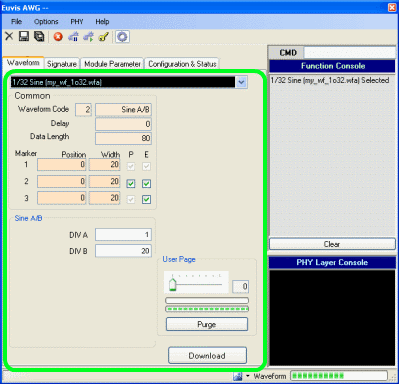
Waveform Selector
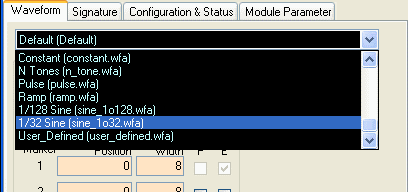
Click on the drop-down list to select a waveform. The software comes with several
pre-defined waveforms. You can
make your own waveforms to put on this list. To learn how to do this, please go to Save Waveform in the
Waveform Files section.
Waveform Parameters
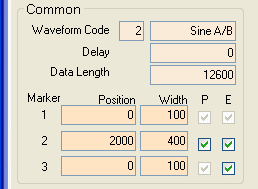
Waveform Code
Specifies the style of waveform to be implemented. Each style has corresponding
specific parameters to adjust the waveform. These parameters may be entered in a
special section below Common parameters only after you have entered a waveform code.
For more details about this, please go to Waveforms
in the Waveform Files section.
Delay
Specifies waveform delay in terms of memory addresses.
This is defined in hexadecimal code.
For example, if delay were set at "5", the first 5 memory addresses would have
the first data value of the waveform, and then at the 6th memory address the waveform amplitude
changes would begin.
Data Length
Specifies how many memory addresses to use for the waveform. This is defined in hexadecimal code, and the Data Length must be a multiple of 10 (hex) for the AWG252 and 20 (hex) for the AWG452. The minimum data length is frequency dependent, with higher clock frequencies requiring longer data lengths, but generally you should use a data length of at least "400" (hex, corresponding to decimal 1024). However, for proper output, you must make sure that the Data Length is equal to or greater than the number of values of your waveform. For a detailed discussion on this parameter, please see the Data Length page in the Operation Details section.
NOTE: If you wish to use dynamic paging, which offers up to 15 user pages, there are some considerations to make with your Data Length. The Data Length per uPage memory partition is "80000" (which is decimal 524288) in the AWG452. If you use many uPages in your waveform, there will be fewer user pages available for you to use.
Marker
The AWG module offers 3 marker signals. Markers are useful for identifying waveforms, since the markers are generated simultaneously with the waveforms. These parameters specify where and how long to output the markers.
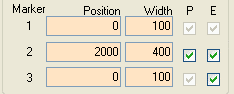
The Position box specifies the data point where you would like to start the marker. The
Width specifies how many data points you would like the marker to be active. The "P" checkbox is only available for Marker 2
and specifies whether you would like active low markers. The "E" checkbox is only available for Marker 2 and Marker 3 and is
used for enabling or disabling those markers. The different characteristics of the three markers are detailed in the
Parameters
page of the Operation Details section.
The Marker is useful as a diagnostic tool. Markers are ONLY output when there is waveform generation. If you have marker enabled but you have no Marker signal then it means that there is no waveform output.
Paging
The AWG module features memory address paging. You can set which user page to use here in this panel (for details, see the description of Multiple waveforms with paging).
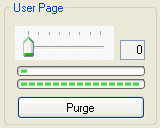
Each user page can load a separate waveform, but the more pages you have, the fewer memory addresses you have available for each waveform -- meaning the maximum data length of each waveform is shorter. Or, the longer the data length of each of your waveforms, the fewer the number of user pages you will have available. The total number of memory addresses is fixed.
Download Waveform
Click this button, located near the lower edge of the waveform panel, to send current waveform parameters to the board. You will have to use this button whenever you change any
waveform parameters.
After a waveform finishes downloading, you should press the Restart button.