Signature Panel -
The Signature Panel is accessed by clicking the 2nd tab. In this panel you can adjust and save settings to optimize the waveform output at various clock frequencies.
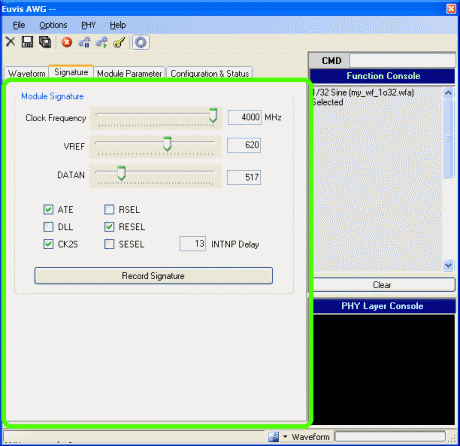
When operating the AWG at different clock frequencies, the settings may need to be changed for optimal performance, especially at higher clock speeds, when the timing and thresholds of data samples are less forgiving and need to be adjusted for different clock frequencies. We have already provided you with a signature file in the main AWG directory. The signature file contains preset signatures for frequencies from 500 MHz to 2.5 GHz for the AWG252 or from 1 GHz to 4 GHz for the AWG452, assuming that the CKD1 and CKD2 SMA's are left open (not 50 ohm terminated or connected to anything else). When using the AWG, you might need to fine tune the preset signatures, and you can record your changes.
Clock Frequency
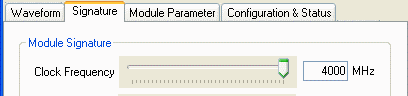
Slide the Clock Frequency bar to match the frequency of your clock source. If settings had previously been stored for this frequency (or a nearby frequency) in the signature file, the settings will be recalled.
It is very important that you enter the input clock correctly, matching your actual clock source, because data for the output waveforms are calculated based on this. Ensure that the clock frequency is right and that the units are also correct.
Whenever you change the clock frequency, you should always re-download the waveform data to the module.
For the AWG252, it is recommended to set the clock frequency within
the range of 500 MHz to 2.5GHz.
For the AWG452, it is recommended to set the clock frequency within the range of
1 GHZ to 4 GHz.
VREF

Sets the reference voltage, which is a threshold for binary data. Typically the lower end works better, but setting VREF too low may result in data loss.
DATAN

Sets an average voltage for the data. This control does not affect anything significantly, although adjusting it may provide slight performance improvements at higher clock frequencies.
ATE
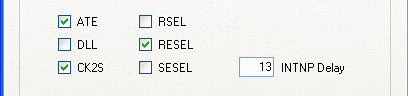
Toggles between using the falling edge and using the rising edge to sample the address. ATE is an internal ASIC parameter and is used to control stability of the waveform.
Often one setting will be superior to the other for several waveforms at a given frequency, although a few waveforms may require the opposite setting. If you find that your waveform is not stable, try switching this option on or off.
If you change this value, you must save the setting by pressing the Record Signature button before you can restart the waveform again, or else the change in setting will be lost.
DLL
Stands for Delay Lock Loop. DLL is an internal Cypress CPU parameter and is also used to control stability of the waveform. If you find that your waveform is not stable try switching this option on and off.
If you change this value, you must save the setting by pressing the Record Signature button before you can restart the waveform again, or else the change in setting will be lost.
INTNP Delay
Sets the timing before the end of a waveform for the module to prepare the next waveform. The correct values ensure seamless continuity from one waveform to the next, and have already been saved in the signature file provided to you. Decreasing this number may delay the output of subsequent waveforms. If you change the clock frequency and notice that this INTNP Delay number has changed, you must re-download the waveform data to the module.
If you change this value, you must save the setting by pressing the Record Signature button before you can restart the waveform again, or else the change in setting will be lost, and you must re-download the waveform data to the module for any change in the INTNP Delay setting to take effect.
Record Signature

When you have adjusted the settings optimally for your current clock frequency, click on the Record Signature button to save these settings. These settings will overwrite any previously saved settings for your selected frequency. The signature file must be in your working directory so that, in the future, these settings will be recalled whenever you slide the clock frequency bar to this frequency (or to a higher frequency, up to the next recorded signature).