Software Setup -
» For now, do not connect the USB cable yet.
You will plug it in later in the software installation procedure.
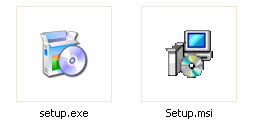
» Ensure that you have the two Euvis AWG installation files setup.exe and
setup.msi on your computer.
» Go to the directory where you downloaded the installation files.
» Double click the setup.exe file. It is the icon with the box and CDROM without the monitor.
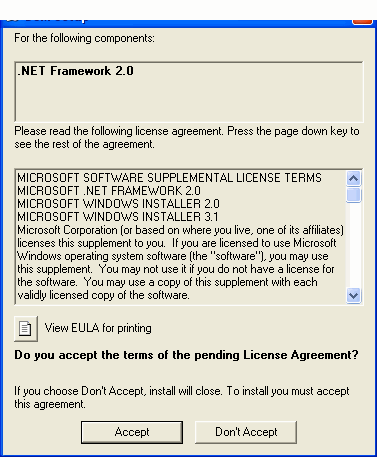
» If you do not have .NET Framework 2.0, the setup program will prompt you to install it.
If you do have .NET Framework 2.0, please skip the next few instructions.
If not, please click Accept.
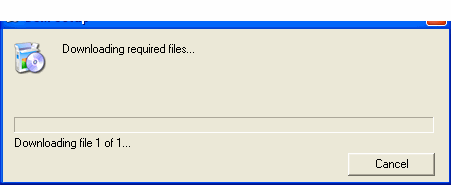
» The installer will download the .NET Framework 2.0 from the Microsoft website. The file is
approximately 23MB for the x86 version. On a 768 kbps connection it will take approximately 4 minutes to complete.
If you do not have the software and the installer does not download it for you, you may manually download it at the
following website: Microsoft .NET Framework 2.0 Redistributable.
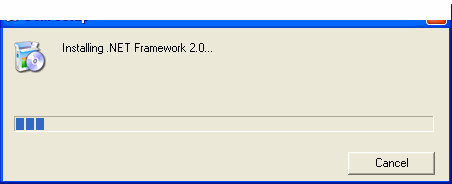
» After downloading, the installer will install the .NET Framework 2.0.
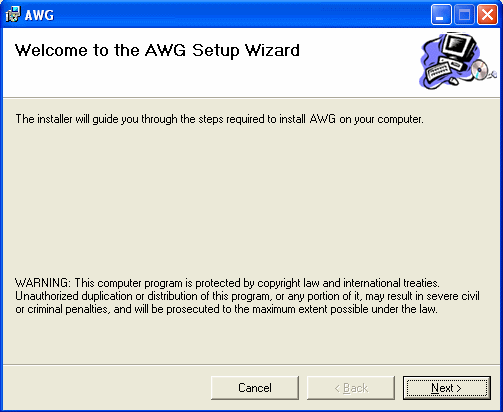
» Following the .NET installation, the AWG Setup Wizard will appear. Please click on Next.
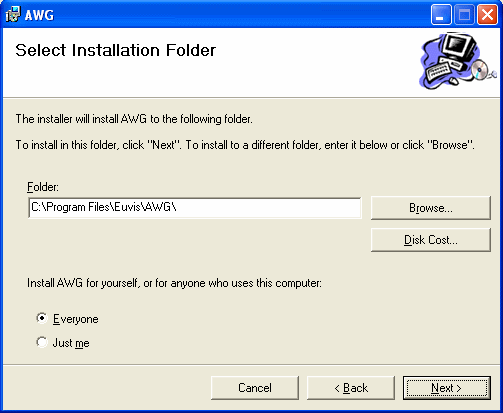
» You may choose another location to install the files or you can keep the default location. You can
also choose to install for all users or for just the user you are currently logged in as. After you are satisfied,
click on Next.
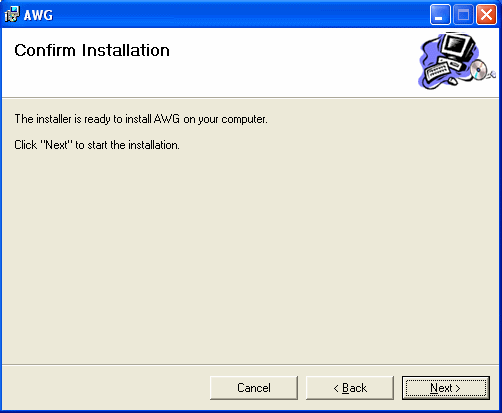
» Click Next on the "Confirm Installation" screen.
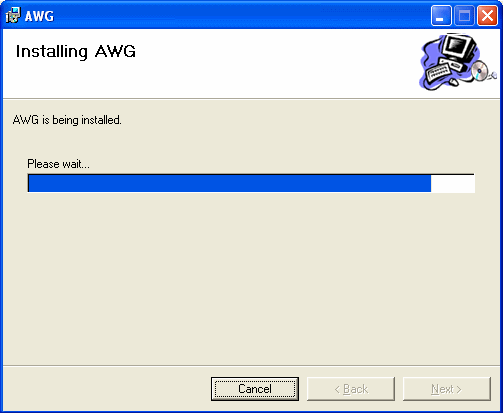
» The installer will copy all necessary files into your system.
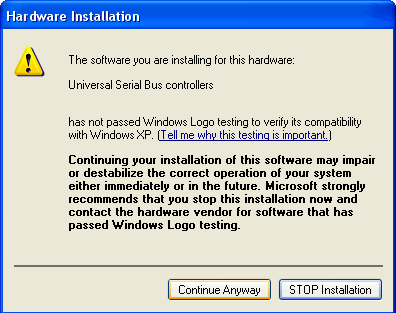
» When setup attempts to install the USB controller drivers, Windows will give you a
warning. Please click on Continue Anyway.
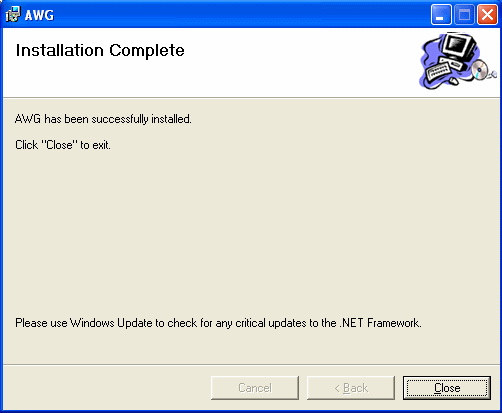
» After installation is complete, please click on Close.
» At this point, if you do not have Microsoft .NET Framework 2.0 SDK you will need to install it.
This software is required, and our program will NOT run if you do not have this. You may download the SDK
software at the following website: Microsoft .NET Framework 2.0 SDK.
The installer is about 354 MB and will take about 1 hour and 3 minutes on a 768 kbps connection.
» After you have downloaded and installed the SDK software you will have completed the
initial software and driver installation.
» Now, please connect a USB A to B Cable from the AWG board to the computer for the first time.
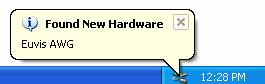
» Windows will detect the AWG within a few seconds.
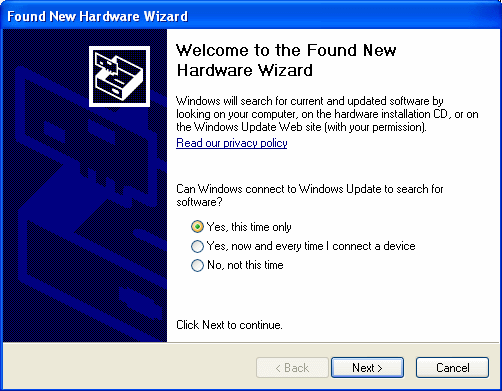
» A window will pop up asking you to find the drivers for the USB controller device.
Select Yes, this time only and then click on Next.
» Select Install from a list or specific location (Advanced) and then click Next.
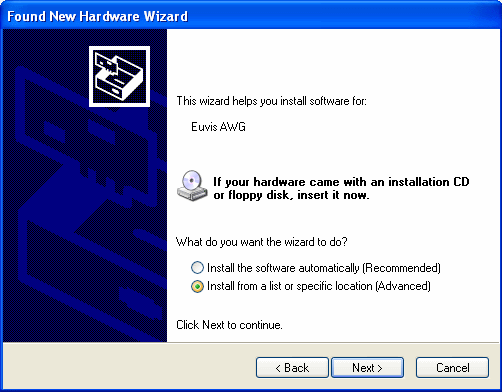
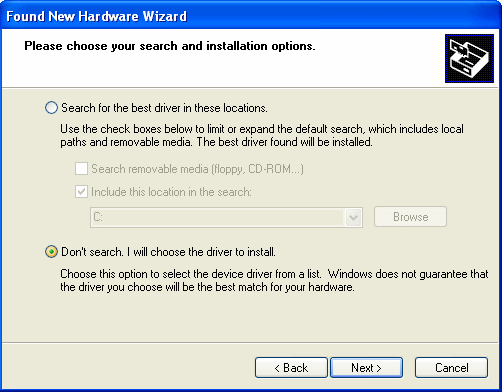
» Select Don't search. I will choose the driver to install and then click Next.
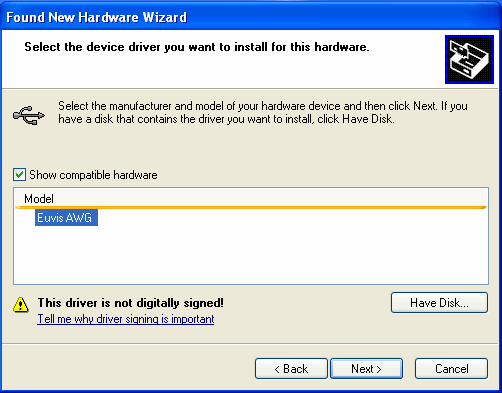
» Under Model, select Euvis AWG and then click Next.
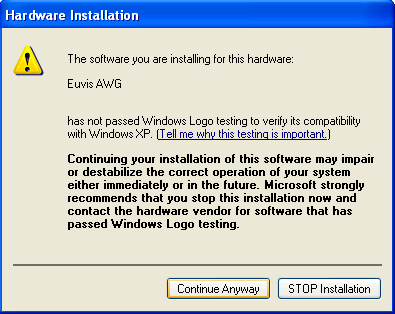
» A window will pop up giving you a warning about the driver. Please click Continue Anyway.
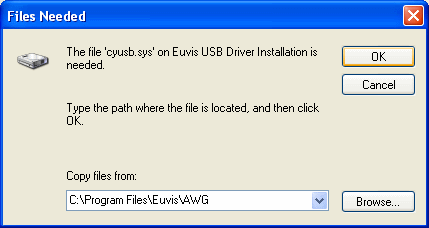
» After a few seconds, the installer will ask you for the drivers for the onboard USB controller. In the
"Copy files from" box enter C:\Program Files\Euvis\Driver.
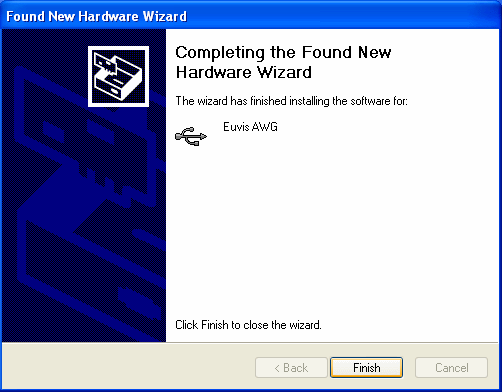
» Click Finish.
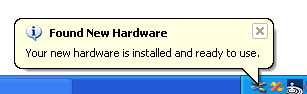
» Windows will inform you that the device is ready for use.
» You have now completed software setup.
The first time you run the AWG_WIN.exe application, you will get the following message:
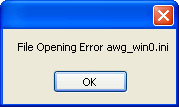
Simply click OK. The missing file awg_win0.ini will then be generated, and the GUI application will launch. You will not see this message again.
» If you ever reinstall the software or install a newer version, please uninstall the old software first, and then follow the software setup from the beginning.