Hardware Setup-
Outputs
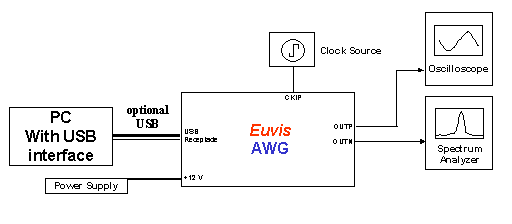
» Connect your oscilloscope and spectrum analyzer to the OUTP and OUTN SMA connectors. They are 50-ohm back terminated, so you can connect one or both, in either order.
Clock Source
» Set your clock to the desired frequency with 3 dBm power. Connect your clock to the CKIP SMA connector at the upper left corner of the board.
Trigger (optional)
» For single-board free running operation, you do not need a trigger signal. For multi-module operation, or for operation in a triggered mode, you may want to use a trigger source so that the master module will generate a SYNCO signal periodically. Set your trigger source, such as a function generator, to a 1 kHz square wave with 1 Vpp amplitude and 0.5 V DC offset (for a 50 ohm load; set the amplitude higher if your setting is for high impedance). Connect your trigger source to the TRIG SMA connector on the left side of the board.
Fan
» Set up a small fan to blow air across the module. This is necessary to keep the board cool, which prevents overheating and allows the module to operate consistently.
Power Plug Setup
For your convenience, we have provided a plug and header configuration for power supply connections to the AWG board. Also included is power adapter already connected to the plug. But, if you wish to use your own power supply, or if you disconnect the plug from the wires, it is essential that you connect wires from the plug to the power supplies in the correct order.
The power plug is rated for a maximum of 300V and 8A. The plug manufacturer suggests wire sizes that range from 16 to 24 AWG but we recommend you use either 16 or 18 AWG wires to reduce significant voltage drops across the wires. The strip length for the wires should be at least 5mm (0.2 inches) for the end that will go into the power connector.
We suggest that you either color code the wires or label them so that you do not plug them into the wrong power supplies. We cannot emphasize enough the importance of correct power supply connections. Any wrong connection can potentially damage the board permanently.
The plug has flanges so that there is only one orientation in which the plug and the header can connect.
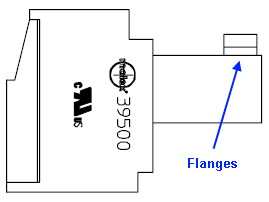
With the screws and flanges facing upward and the flanges on the left side, connect the wires as indicated. Please strip at least 5mm (0.2 inches) of the wires and insert them into the square holes on the opposite side of the flanges (on the right side in the image below).
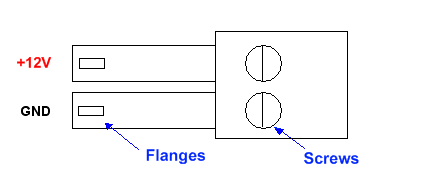
After inserting each wire, use a 5/64" slotted screwdriver to fasten the wire in place. Repeat this procedure for the other wire. The +12V wire from the power adapter has white dashes to differentiate it from the other wire.
Power Supply
The power adapter is rated for 100V-240V AC input. Please plug it into an electrical outlet. Insert the other end into the header at the bottom of the AWG board. The plug has flanges so that there is only one orientation in which the plug and the header can connect.» If you have not already done so, please insert the power plug into the power header near the lower right corner of the board. You should have already set up the plug so that the wires are connected to the power supply in the correct order, and you should already have a fan blowing air across the board.
If you are using your own power supply, then after you have connected the power and turned it on, you should use a multi-meter to check the voltages at the connector just in case there is a significant voltage drop across any of the wires. You can check the voltage at the connector by probing the screw which you used to fasten the wires. The ground should be near 0 V. The +12 V should all be close to the stated value. If any reading at the connector is not correct, adjust your power supply until the reading is correct.
NOTE: When unplugging the power plug from the header, pull the actual plug and not the wires to avoid disconnecting the wires from the plug.
USB port
» Connect the AWG board to your PC with a USB cable only if you have already installed the software and drivers.
» If you have not installed all the software and drivers, please do not connect to the USB port. You can still operate the board in standalone mode.
» Schematically, the connections should look like the diagram below:
Power On
» Turn on the power supply. You may turn on the power supply in any order.
» If you have done everything correctly, then you should see the built-in waveform output on your
oscilloscope and your spectrum analyzer after a few seconds.
The built-in waveform is pre-stored in the firmware and is automatically loaded at startup.
Even with a PC connected to the AWG, the built-in waveform loads and
runs before the PC
downloads a new waveform to the board, although
you must press the Restart button in the AWG_WIN.exe application once you have started
the program.
The built-in waveform is a 256-point cyclic linear chirping waveform sweeping from 1/256 to 1/16 of the clock frequency with frequency update at 8 clock cycles.
» The built-in waveform can be customized upon request.