Free Run Mode
In Free Run mode, the module starts waveform generation by a Restart command from the GUI or from API-based applications. Once the waveform starts, the module repeats the waveform continuously. There is no latency between two consecutive waveforms. The subsequent waveform starts right after the end of the preceding waveform. The waveform generation can be aborted by an Abort command from the GUI or API-based applications will output a continuous waveform without pause. From the GUI, you can use your computer to choose the waveform or make other parameter changes in free run mode.
Free Run Mode Operation Example:
» Power up the module by plugging in the power supply. Remember that you should install them as specified in the Hardware Setup page. Connect the clock source, set to the appropriate operation ratings for the AWG module, to CKIP on the module. Soon after the module powers up, you should see the pre-stored waveform displayed in the oscilloscope with the corresponding spectrum in the analyzer. The standalone waveform can be customized upon request.
» Open the AWG application. You should have already set up the
software and drivers and have connected the
module to a USB port on the computer. Upon loading the AWG application, the module
will stop producing the pre-stored waveform.
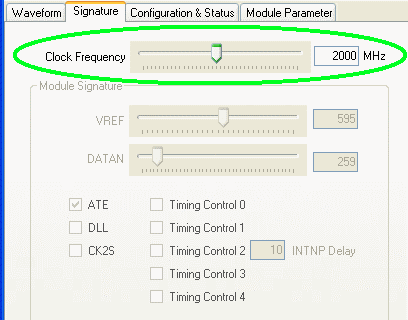
» Adjust the clock in the Signature panel.
For our example, we have set the clock to 2.0 GHz since our clock input is at 2.0 GHz.
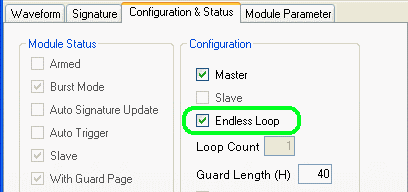
» Click on the "Configuration & Status" tab to go to that panel. Make sure that the configuration is
Endless Loop.
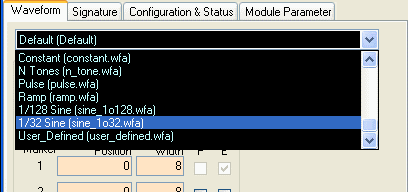
» Click on the "Waveform" tab to go to that panel. Click on the drop-down list and click on the "1/32 Sine (sine_1o32.wfa)" waveform.
» The waveform, a Sine wave at 1/32nds of the
clock frequency, should load, and you should already be able to see the output in the oscilloscope and the spectrum
analyzer. Right-click the mouse and select "Refresh" if necessary
to refresh the waveform.
Note that DIV B is "20," which is the hexadecimal representation for decimal 32.
» We are going to change the waveform to a Sine wave at 1/128ths of the clock frequency.
» Change DIV B to "80", which is the hexadecimal equivalent of decimal 128.
» Now click on Download Waveform.