Load Waveform -
There are two ways you can load waveform files.
The first way, which is detailed below, is simply loading a saved .wfa file from
a previous session with the GUI application.
The second way involves entering a waveform code corresponding to a waveform style
for which you then enter specific parameters. For details on using the waveform
codes, please go to the Waveforms page.
Waveforms previously saved
Waveform files saved from a previous session in the GUI application can be loaded easily. The files have the extension .wfa and are stored in your application folder or the user-defined waveform directory.
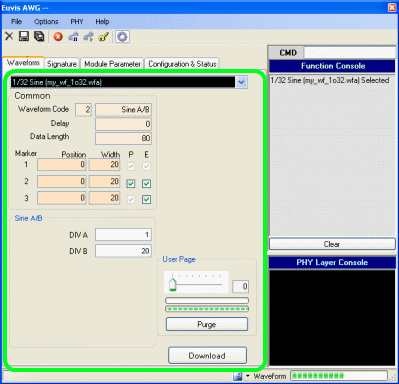
» With the program open, click on the Waveform tab if you are not already in the Waveform Panel.
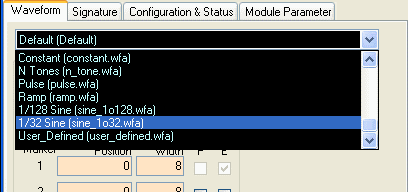
» Click on the drop-down list and select one of the saved waveforms.
» Change any parameters if desired, and then please press the Download button at the bottom of the waveform panel or from the right-click pop-up menu. Wait until the waveform finishes downloading to the AWG module, and then restart the waveform (from the right-click pop-up menu).
For example, from the drop-down list select the waveform named "1/32 Sine (sine_1o32.wfa)". This is a Sine wave at 1/32nds of the clock frequency. You can adjust various parameters if desired. Then click the Download button, and after the file finishes downloading, press Restart.
Waveform codes
For details on using the waveform codes, please go to the
Waveforms page.
Inverse Sinc Filter
The Inverse Sinc Filter is available from the Options menu bar. For details on applying the inverse sinc filter to analog waveforms, please see the description on the menus page.