Operation Examples -
We will now present an example of using one Master board to control one Slave board.
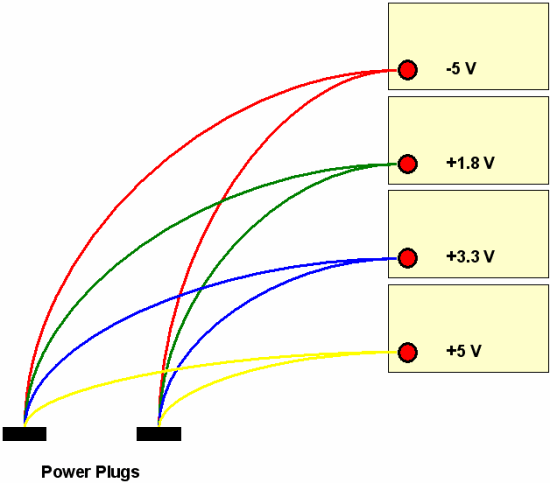
» Plug the power supply to both boards. The best way to do this is to split the supplies so that each board is getting
the same voltage as pictured below:
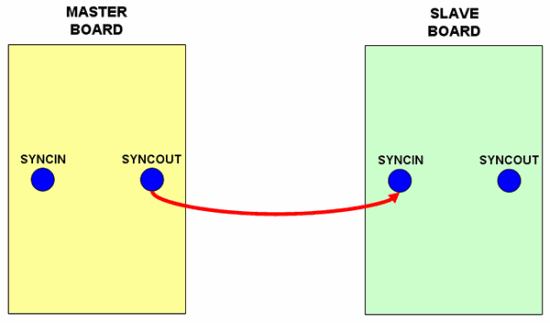
» Connect the necessary SMA cables to the Master and Slave boards. Note that you must connect the SYNCOUT on the Master
Board to SYNCIN in the slave board. The input clock should be split and input to both DDSCK inputs on the Master and Slave board.
If there is a trigger signal, connect it to the TRIG connector on the Master board. If you are not using both of the outputs, use
the DDSOP output and terminate the DDSON connector with a 50 ohm terminal resistor.
» Now connect both boards to the computer using two USB A-to-B cables.
» Power up the DSM board by turning on the power supplies. Remember that you should turn them on in the right order as
specified in the Hardware Setup page.
» You will need to open two instances of the DSM application. When you open the first DSM application the following dialog
box will appear:
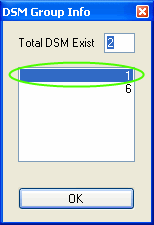
The information in the dialog box will be different for your boards since each board is identified by a special number. We have the #1 and #6 boards. We will make the #1 our Master board and #6 our Slave board. We select #1 and click OK.
» The DSM application will now open. If you look at the title bar, you will notice that it has the board number so that
you can identify the boards easily.
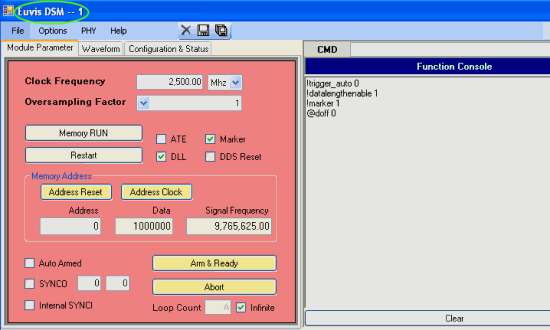
» Now open up a second DSM program. Again the dialog box will appear:
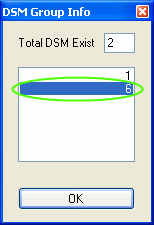
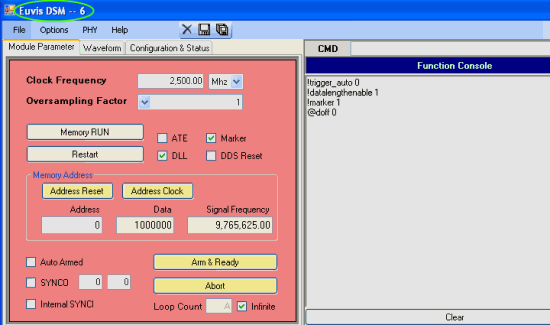
Choose the second board and then click on OK.
» Once again you will notice that the title bar will have the board's number.
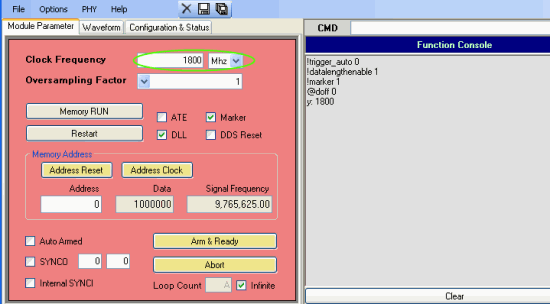
» Go back to the Master board application. Adjust the Clock Frequency so that it matches the input clock
frequency. Our clock is at 1.8 Ghz so we will set it to "1800" and the units to "Mhz". Repeat the same procedure with the Slave board
application.
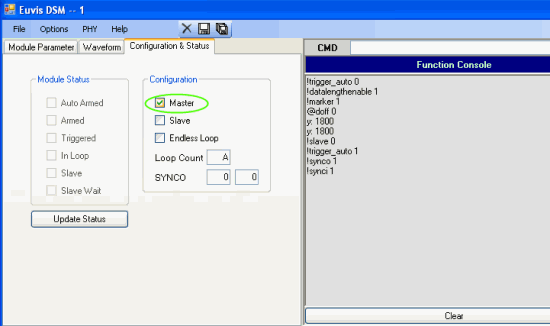
» Go back to the Master application and click on the "Configuration and Status" tab. Change the configuration so that
only Master is checked.
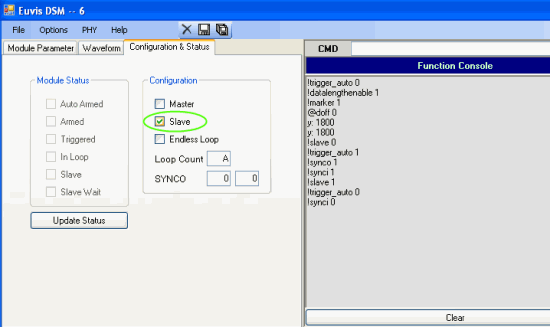
» Now go to the Slave application and click on the "Configuration and Status" tab. Change the configuration so that
only Slave is checked.
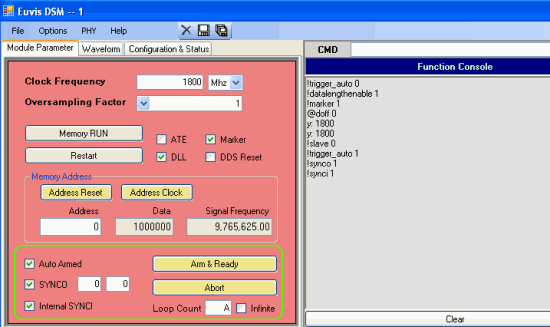
» In the Master application, click on the "Module Parameters" tab. Make sure that Auto Armed,
Internal SYNCI, and SYNCO are all checked. Also, you will notice that Loop Count
is set to "A" (decimal 10). For an explanation of these parameters, please
see the Internal States section in the Module Parameters page.
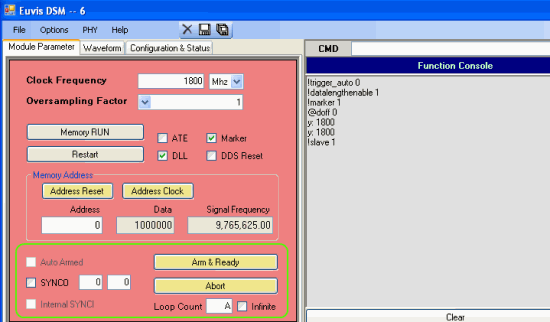
» Now go to the Slave application and click on the "Module Parameters". Make sure that Auto Armed and
Internal SYNCI options are unavailable. Although SYNCOUT is available, it has no effect on the
board even if you change any of the values or enable it. Slave boards never output a SYNCO signal.
Also, you will notice that Loop Count
is set to "A" (decimal 10). The Slave board does not have to mirror the output of the Master board. The Master board merely synchronizes
the Slave board so that they would begin outputting waveforms at the same time. The two boards can output two different waveforms at the
same time and even different numbers of waveforms so you can change Loop Count to whatever value you desire as long as
it is LESS than the loop count of the Master board.
» For this example, we will have the two boards output the exact same waveform. To have the Master and Slave boards output
different waveforms, just change the following settings to the ones that you want.
In both Master and Slave applications, click on the "Waveform" tab to go to that window. Click on the drop-down box and click on the "User Defined 1" waveform.
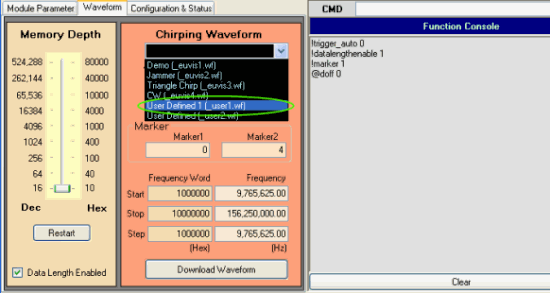
» The "User Defined 1" waveform parameters will load.
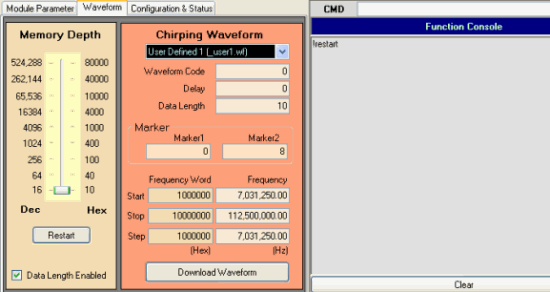
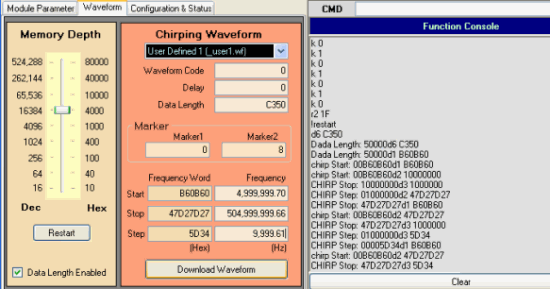
» We are going to change the waveform. We want to chirp from 5 Mhz to 505 Mhz in 10 KHz steps. There are 50,000 steps in
this chirp so we will set Data Length to "C350" which is equal to decimal 50,000.
Also we will set the Memory Depth to "65,536/10000" so that it is above the Data Length.
For Frequency we enter 5,000,000, 505,000,000, and 10,000 for Start frequency,
Stop frequency, and Step frequency respectively.
The program will change the values slightly to the real frequencies that it will output.
» Now click on Download Waveform.
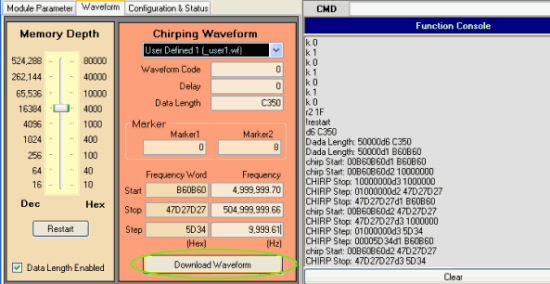
» If you have a trigger signal and have not yet started it (note that the board produces waveforms when the trigger is
logical level low so when you do not want a trigger signal, then you should keep the trigger level at high) then the board will not
output the waveform and instead will be in the "Armed" state for the Master board and the "Slave Wait" state for the Slave which is
equivalent to the "Armed" state in the Master. You can verify what state the the board is in by checking the "Configuration & Status"
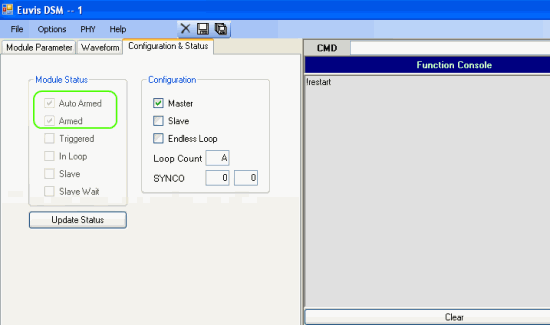
window. For the Master board, you will notice that both Auto Armed and Armed are checked.
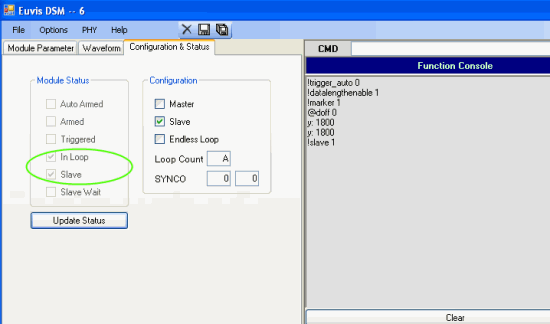
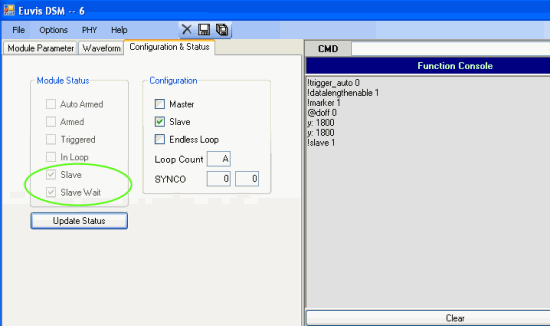
» For the Slave board, you will notice that both Slave and Slave Wait are checked.
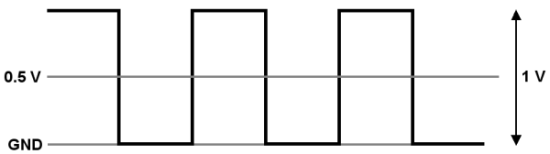
» At this point you will either need to provide a trigger signal or you can press the TRIG button on the Master board. The
trigger signal we used in our lab was a 1 kHz 1 V peak-to-peak square wave with a DC offset of 0.5 V. You should use a similar signal
for your trigger. The frequency of the trigger of course is up to you.
» Once the board receives the trigger signal, both boards will output waveforms.
» If you hook MARKER from both boards to an oscilloscope you can view when they are outputting waveforms.
The MARKER signal is output every time a waveform is output. So for our current setup, we have 10 waveforms so
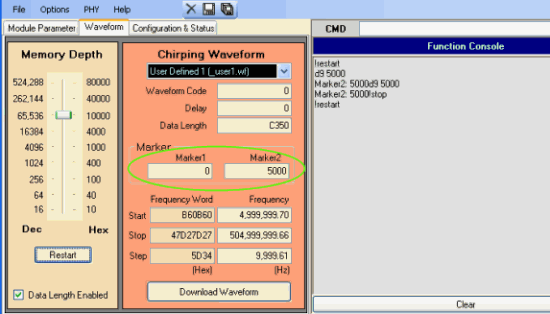
there should be 10 signal drops for the MARKER signal. To see the MARKER signal more clearly, click on the "Waveform" tab
and change the Marker1 and Marker2 values to "0" and "5000" respectively. Note that these values are
in hexadecimal so in decimal they are 0 and 20,480. This will cause the DSM to drop the Marker signal for 20481 (hex memory address 0
to hex memory address 5000) which is equivalent to about 45.5 microseconds at 1.8 GHz.
» In the Master board, if you go to the "Configuration & Status" window and click on Update Status repeatedly, you will notice
the board in various states of operation.
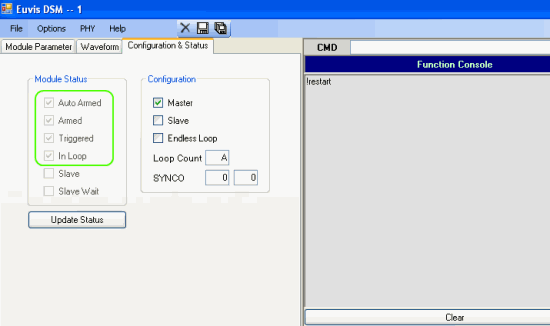
» Similarly in the Slave board, if you go to the "Configuration & Status" window and click on Update Status repeatedly, you will notice
the board in various states of operation.