Firmware Update
All new firmware will be accompanied by a GUI application so that the functions will match. To update the firmware, please follow the instructions below.
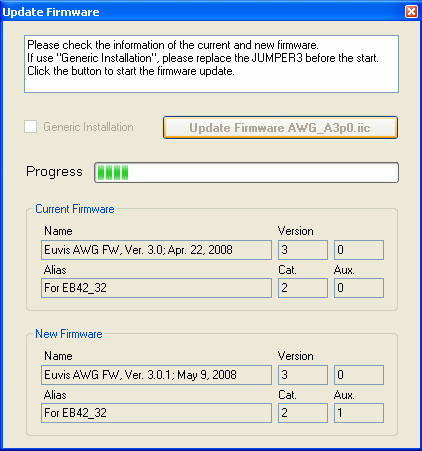
Place the new .exe GUI application and the new .iic firmware files in the program directory you were already using.
For normal firmware updating, power up the module with a jumper on JP3 and click on PHY --> Firmware Update to bring up the above dialog box. The dialog box will display the current version of the firmware on the device and the new firmware that you will write to the ROM. Confirm that the name of the new firmware identifies that to which you want to update, and then simply click on the Update Firmware button to begin the process. It will take approximately 30 to 60 seconds to complete.
To register the changes to the application, power down the module and exit the GUI. Power up the board, and wait a few seconds for the demo waveform to show up.

After the demo waveform has appeared, re-launch the GUI, or click on PHY --> USB Reconnect. To verify that you have successfully updated the firmware, click on PHY -->
Firmware Info, and it should show the new firmware information.
If there is a problem, we recommend that you perform a Generic Installation. To do this, with the module off, remove the jumper (shunt) from JP3 on the board. Power up the device and launch the GUI application. Go to PHY --> Firmware Update to open the dialog box. Place the jumper back on to JP3. Confirm that the name of the new firmware identifies that to which you want to update, and then simply click on the Update Firmware button to begin writing to the ROM. To register the changes to the application, exit the application, power down the board, and then power up the board. Wait a few seconds for the demo waveform to appear, and then launch the GUI application. When you open the program again and click on PHY --> Firmware Info, it should show the changed firmware information.
Software Update
Before installing a new version of the GUI software, please first ensure that your
waveform files (.wfa, .xml, .uda) are saved in a directory different from your program
directory.
Then, uninstall the existing GUI application from the Add/Remove Programs
control panel in Windows. The uninstallation process will remove the application,
including waveform files in the program directory. After the GUI application has been uninstalled
you may proceed with the
Software Setup to install
the new GUI application.